Best Screen Recorders for Gaming and Tutorials (Free + Paid)
Best Screen Recorders for Gaming and Tutorials (Free + Paid)
Choosing the best screen recorder for gaming and tutorials can make a major difference in both your workflow and final output quality. Whether you’re capturing intense gameplay or recording software walkthroughs, the right tool must balance performance, ease of use, and output clarity. For gamers, hardware-acceleration options like NVENC (on NVIDIA) or AMF (on AMD) are key—they minimise FPS drops and keep your game running smoothly while recording in high resolution. Tutorials, on the other hand, often benefit more from features like cursor highlights, call-outs,
webcam overlays, and timeline editors so your viewers can easily follow along. Free options such as OBS Studio offer powerhouse flexibility at no cost, making them ideal if you’re comfortable with a steeper learning curve. If you prefer a streamlined interface, built-in tools like Xbox Game Bar (Windows) or vendor-specific capture (e.g., NVIDIA ShadowPlay) offer simpler setups with fewer settings. Paid solutions bring polish to the table: editors integrated with screen-capture functionality help you streamline tutorial production, adding annotations, effects, and captions without
switching programs. Prioritising codec settings, resolution, frame rate, and audio tracks ensures smooth results whether you’re uploading to YouTube, streaming live, or building an educational course. The key is to pick a recorder that matches your hardware, your content style (fast-paced gameplay vs. methodical tutorials), and your editing comfort level. Once configured properly, you’ll spend less time wrestling with tech and more time creating engaging videos your audience will love.
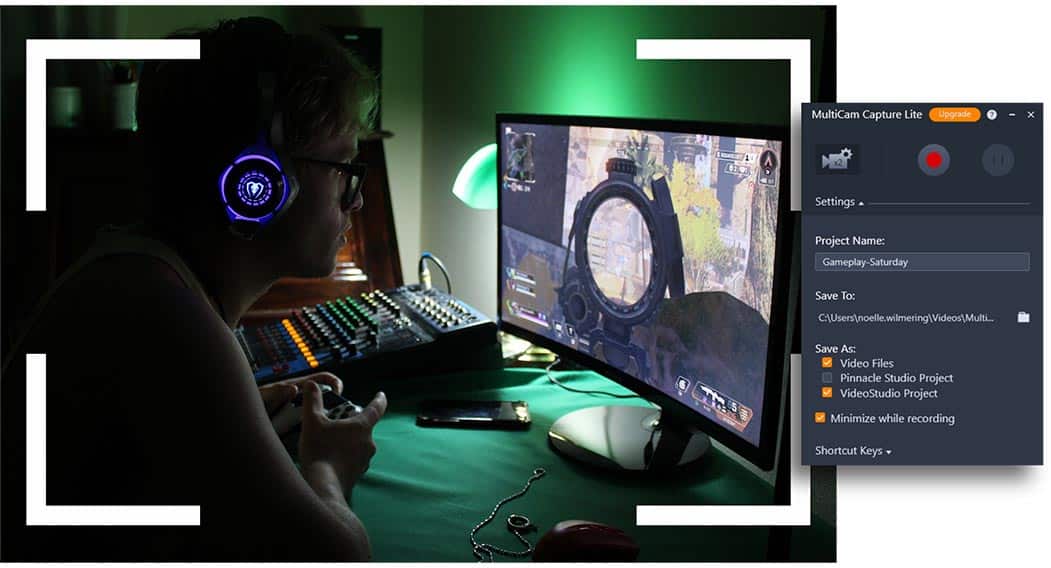
A hand-picked list with what each tool does best, recommended settings, and quick links. Perfect for YouTube, walkthroughs, and high-FPS gameplay captures.
Top Picks (TL;DR)
OBS Studio Best Overall
Powerful, open-source, highly customizable. Great for both gameplay and tutorial videos.
GeForce Experience / ShadowPlay Best for Low Overhead
Near-zero performance hit on supported NVIDIA GPUs. Instant replay and quick highlights.
Camtasia Best for Tutorials
All-in-one recorder + editor with callouts, cursor effects, and easy timeline for lesson videos.
Bandicam Best for High FPS
Lightweight with game capture hooks; simple interface, great for long gaming sessions.
Best Free Screen Recorders
OBS Studio (Windows/Mac/Linux) Open-Source
OBS is the community standard for creators. Use Scenes and Sources to switch layouts, add webcam frames, alerts, and more. Records and streams simultaneously.
- No watermark or time limit
- Pro controls (bitrate, encoder, audio tracks)
- Huge plugin ecosystem
- Learning curve for new users
- Needs tuning for low-end PCs
Tip: Use NVENC (NVIDIA) or AMF (AMD) / Quick Sync (Intel) for smoother frames while gaming.
GeForce Experience / ShadowPlay (Windows, NVIDIA GPUs)
Minimal impact game recorder with Instant Replay, highlight capture, and quick overlays.
- Best for: High-FPS games on NVIDIA GPUs
- Standout: “Save last X minutes” hotkey
Xbox Game Bar (Windows 10/11)
Built-in Windows overlay (Win + G) for quick game capture, mic toggle, and widgets.
- Best for: Quick recordings without installing anything
- Note: Limited advanced controls
AMD Radeon ReLive / AMD Software: Adrenalin
Hardware-accelerated recording for AMD GPUs with hotkeys, overlays, and instant highlights.
- Best for: AMD GPU users
- Standout: Low overhead like ShadowPlay
ShareX (Windows)
Open-source recorder with region capture, GIF export, and powerful workflow automation (great for tutorial snippets).
- Best for: Tutorial GIFs & lightweight desktop demos
- Note: Not aimed at high-FPS gaming
Loom (Free tier)
Fast webcam + screen bubble for explainers, feedback, and class tutorials.
- Best for: Quick tutorial sharing with a link
- Note: Free tier has limits/watermark
Best Paid Screen Recorders
Camtasia (Windows/Mac) All-in-One Editor
Ideal for tutorials and courses. Drag-and-drop effects, cursor highlights, callouts, quizzes, and easy captions.
- Beginner-friendly timeline editor
- Export templates & assets
Bandicam (Windows)
Light, simple, and reliable game capture. Good for long sessions and older PCs.
- Game, Screen, and Device capture modes
- Webcam overlay and real-time drawing
Movavi Screen Recorder (Windows/Mac)
Clean UI, quick trims, scheduled recordings, and annotation tools—solid for tutorials.
Snagit (Windows/Mac)
Perfect for short how-tos: capture + annotate + quick video trimming. Great for teams and documentation.
Wondershare DemoCreator (Windows/Mac)
Balanced recorder/editor with cursor FX, effects packs, and presentation-style tools.
ScreenFlow (Mac)
Mac-only recorder/editor praised for crisp captures and smooth editing for tutorials.
Recommended Settings (Quick Start)
For Gaming (High FPS)
- Encoder: NVENC (NVIDIA) / AMF (AMD) / QSV (Intel)
- Resolution: 1080p (or 1440p if GPU allows)
- Frame Rate: 60 FPS (120 for high-refresh content)
- Bitrate (H.264): 12,000–20,000 kbps (1080p60)
- Container: MP4 or MKV (then remux to MP4)
- Audio: 48 kHz, 192–320 kbps; separate mic/game tracks if possible
For Tutorials (Clarity + Text)
- Resolution: 1440p if text/UI is small; otherwise 1080p
- Frame Rate: 30–60 FPS (30 is fine for software demos)
- Bitrate: 8,000–14,000 kbps (1080p30–60)
- Cursor: Enable cursor highlight/click effects (Camtasia/Snagit)
- Audio: Use a USB mic, disable noise suppression only if artifacts
- Layout: Webcam bubble in a corner, brand color lower-third
Performance tip: Record to a fast SSD and close background apps (Discord overlay, browsers with many tabs) to